What's New at Recipinned: November 2026
Here’s what’s new in Recipinned since October:
- Meal plan calendars: separate meal plans for each person or purpose, in one account.
- Plan servings and batch cooking: set how many servings to cook, and keep a Prep slot for big batches.
- Shopping list favorites: add the things you buy every week in a couple of taps.
- Recipes from TikTok, Instagram and YouTube: import a recipe straight from a post.
- Scale a recipe to what you have: fit the recipe to the 2 lb of chicken in your fridge.
- A better recipe page on your phone: times and servings up top, and a screen that stays on.
- AI and privacy settings: choose what uses AI and what we collect.
Meal plan calendars
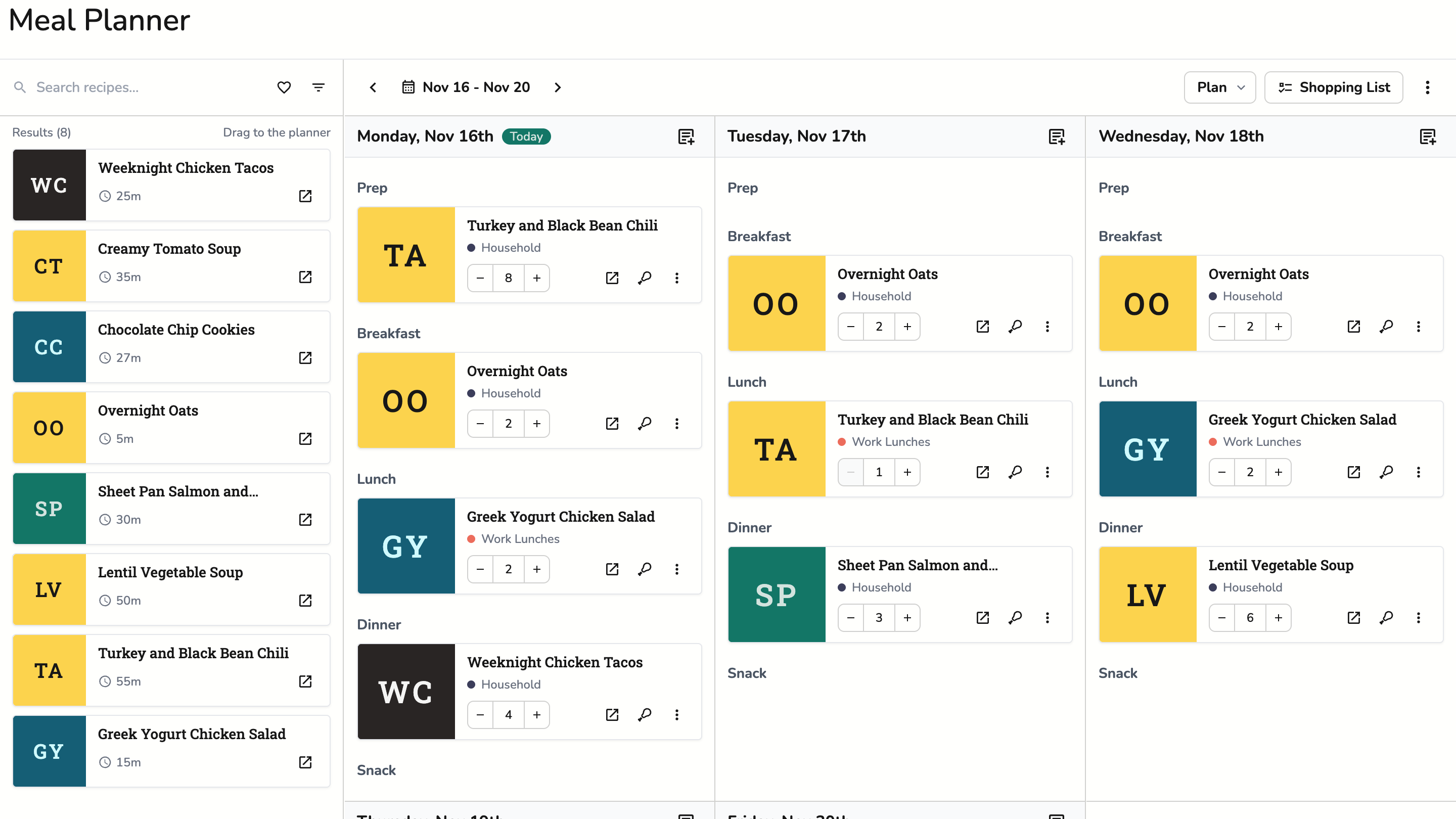
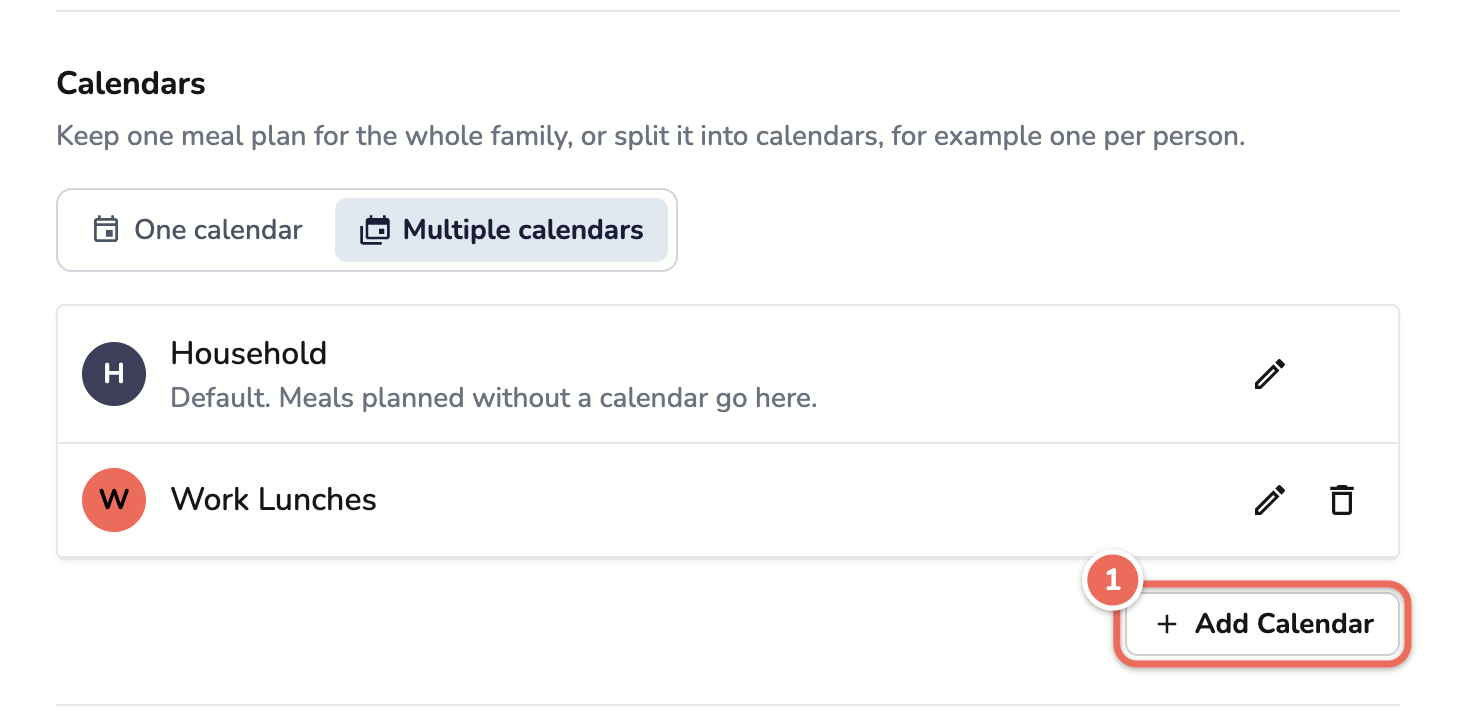
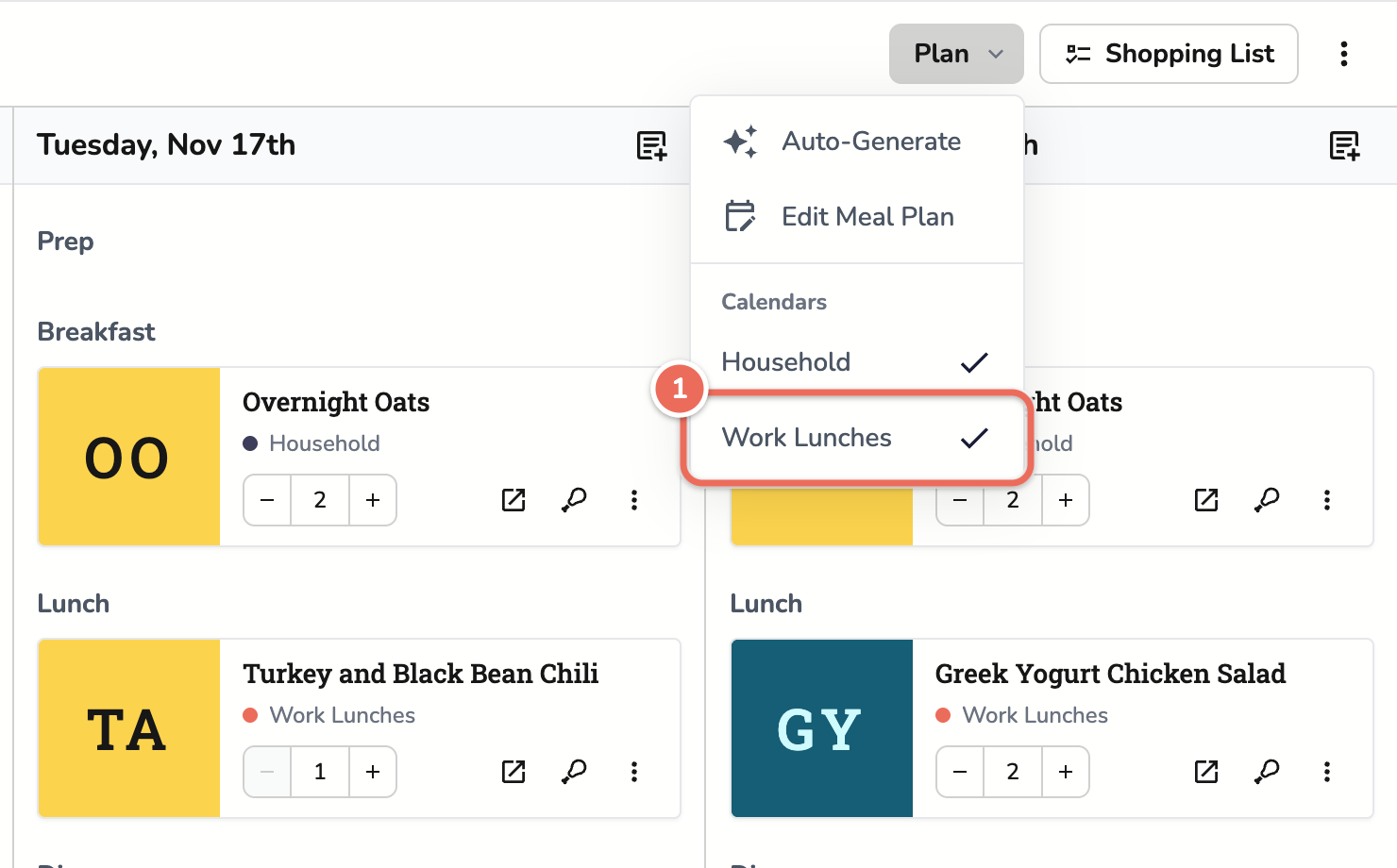
Calendars let one account keep several meal plans side by side. Plan household dinners on one and your work lunches on another, or give each person their own. Each calendar has its own color in the planner.
To set them up, open Settings > Meal Plans, pick Multiple calendars, and add a calendar (1). You can have up to six.
In the planner, the Plan menu shows or hides each calendar (1). Adding a recipe, auto-generating a week and applying a template all let you pick the calendar, and so does shopping list sync, so your work lunches stay off the household grocery list.
The help article on planning with multiple calendars has the details.
Plan servings and batch cooking
Most recipes make four servings, and most weeks you don’t want exactly four. Plan by Servings puts a Total servings stepper on every meal in your plan (1). It starts at the recipe’s yield. Set the chili to 8 for a batch, or the salmon to 3 for a smaller dinner.
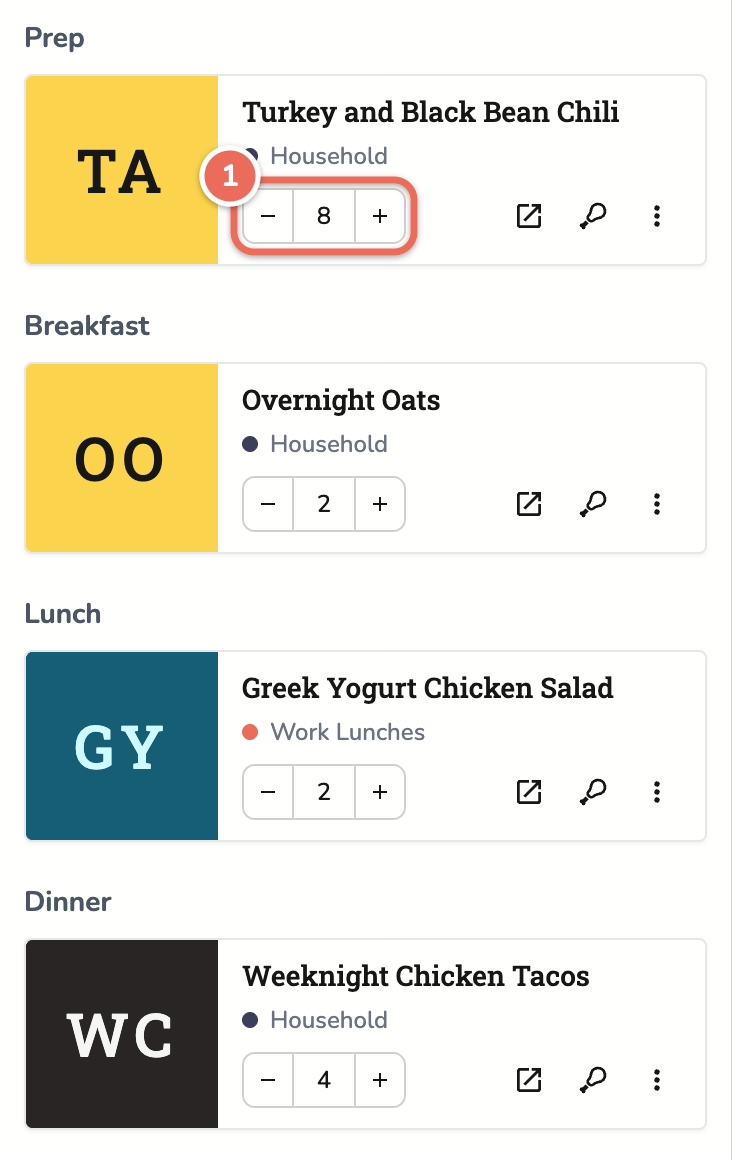
When you sync the week to a shopping list, each recipe’s ingredients scale to the servings you picked: eight servings of a four-serving chili puts twice the beans on your list. Recipes you add to a list from the recipe page or the list itself ask how many servings you want, too.
Plan by Servings is off by default. Turn it on with the Plan by servings switch in Settings > Meal Plans (1). The planning servings for each meal article walks through it.

If you cook a big pot on Sunday and eat from it all week, the new Prep meal gives that cooking its own place at the top of the day, so the batch doesn’t crowd your dinners. If you track nutrition, Prep meals stay out of the day’s total so nothing is counted twice. New accounts have Prep turned on; older accounts can turn it on under Enabled meals in the same settings page. New to batch cooking? Our meal planning for beginners guide covers the basics.
Settings also save as you go now. Change a meal plan, recipe or shopping list setting and it’s saved, with no Save button to forget.
Shopping list favorites and smarter lists
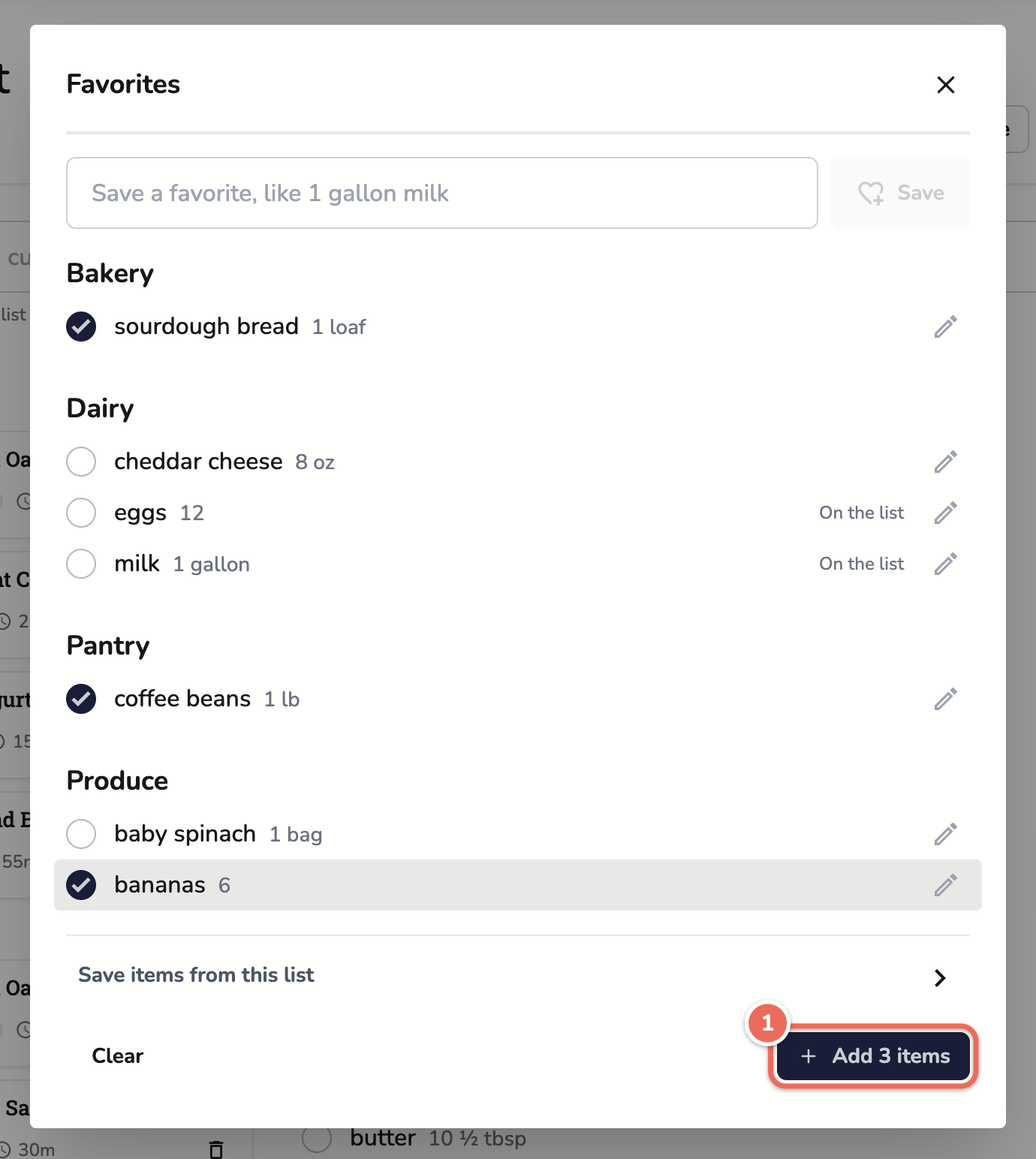
Milk, eggs, bananas, coffee. Some things go on every list. Favorites keeps them in one place so you can add them in a couple of taps.
Open a shopping list and click Favorites. Save an item the way you’d type it (“1 gallon milk”), and it’s grouped by category. Next time, check the ones you need and add them all at once (1). Items already on your list are marked On the list, so you don’t double up. Everyone in your account shares them.
Lists also got easier to shop from:
- Add a recipe from the list itself. The Add Recipe button adds a recipe’s ingredients without leaving the page.
- One row per food. When two recipes need the same food in amounts that can’t be added together, like 3 lb of black beans and 1 can, they share one row (1) with one checkbox.
- Categories that stick. Move a food to a different category once, and it goes there every time after.
- Swipe on your phone. Swipe a row to check it off or edit it.
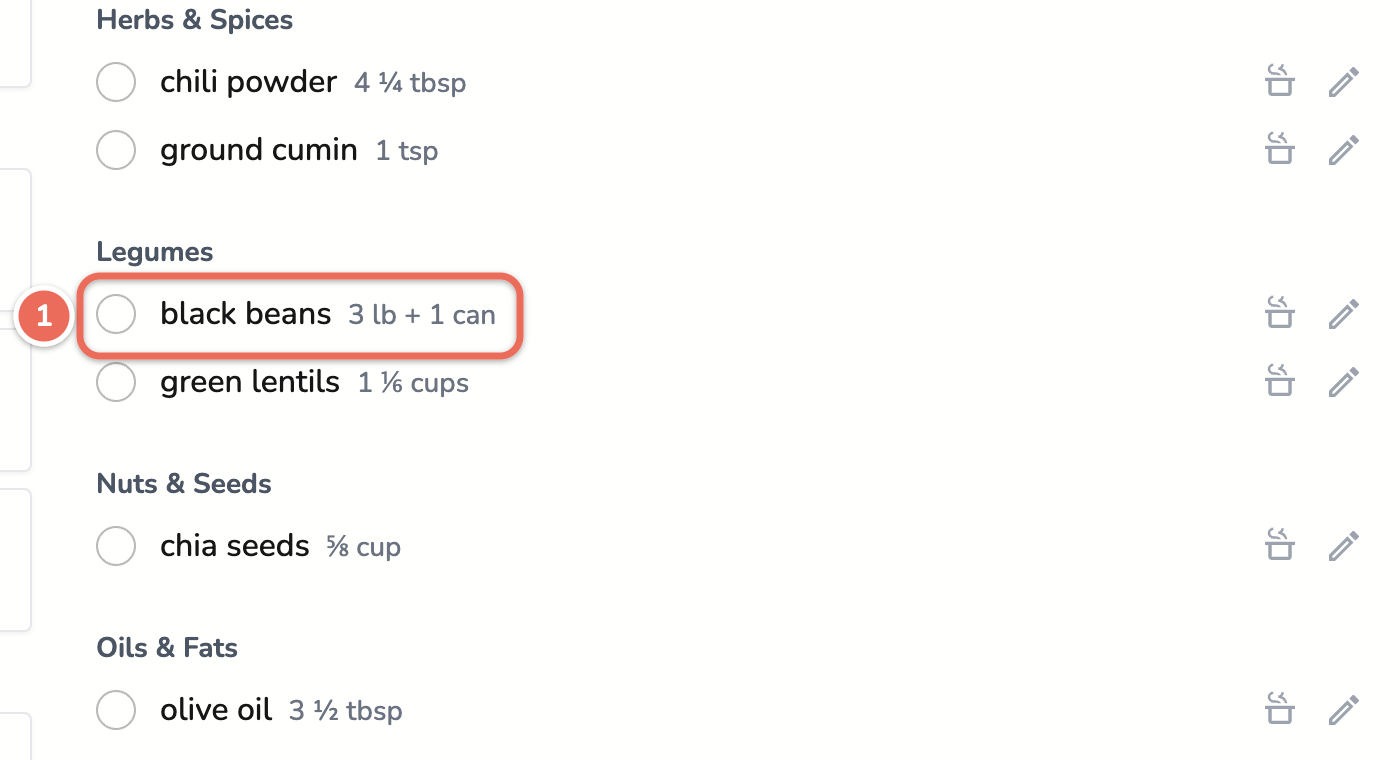
More on lists in managing shopping lists.
Import recipes from TikTok, Instagram and YouTube
A lot of good recipes live in short videos, often spoken or shown on screen rather than written in the caption. Recipinned now imports posts from TikTok, Instagram, YouTube, Facebook and Pinterest. It reads the caption first, then listens to the audio and reads the on-screen text when the caption isn’t enough.
You don’t need to find the import page. Paste the link into recipe search and click Import recipe.
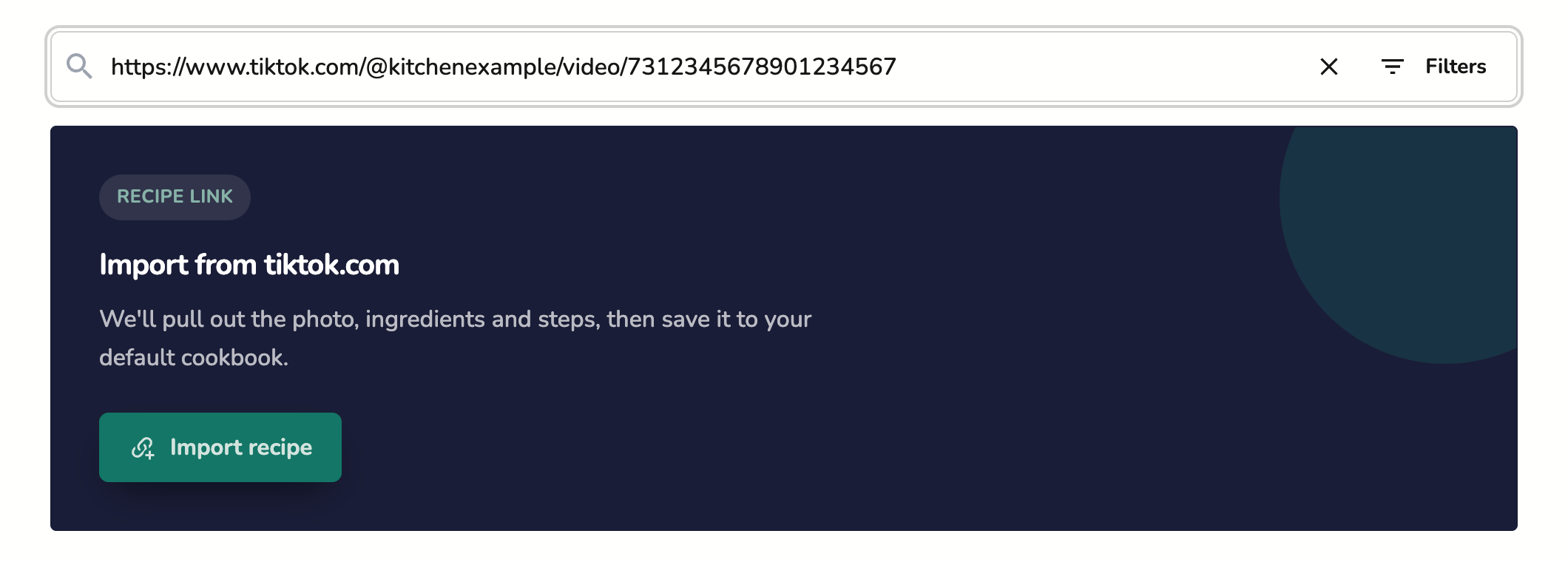
Importing from a social post uses AI, so it needs AI features turned on. If a post doesn’t contain a recipe, or only links to one somewhere else, we tell you instead of guessing. Imports also show clearer progress, and read more of the ways sites write cook times and servings.
Social import is new, and we’re still improving it. Some posts will come through with a missing step or an amount to fix. If one does, send it to us with Feedback? Let us know in your account menu, so we can make the next import better.
Scale a recipe to what you have
The recipe calls for 1 ½ lb of chicken thighs, and the pack in your fridge is 2 lb. Before, you had to work out the servings yourself. Now you can scale the recipe by that one ingredient.
Click the Serves button on a recipe and choose Ingredient at the top of the Scale dialog. Pick the chicken, type how much you have (1), and click Scale. Everything else in the recipe changes by the same amount. Amounts like 1.5 and 1 1/2 both work.
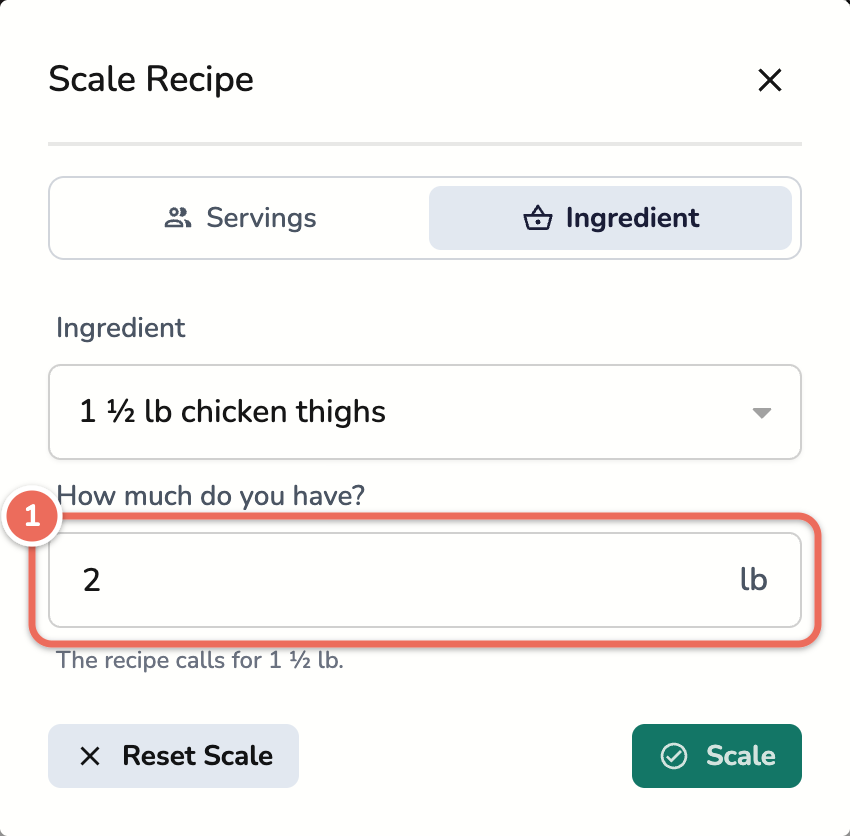
Once a recipe is scaled, a Reset link under the button takes it back to the original. Servings now show as kitchen fractions too, so a scaled recipe reads “Serves 5 ⅓” instead of a long decimal. The viewing recipes help article has the steps.
A better recipe page on your phone
On phones, the recipe page puts total, prep and cook time in one row with the servings stepper right under them. Your screen also stays on while you have a recipe open, so you’re not tapping it with flour on your hands.
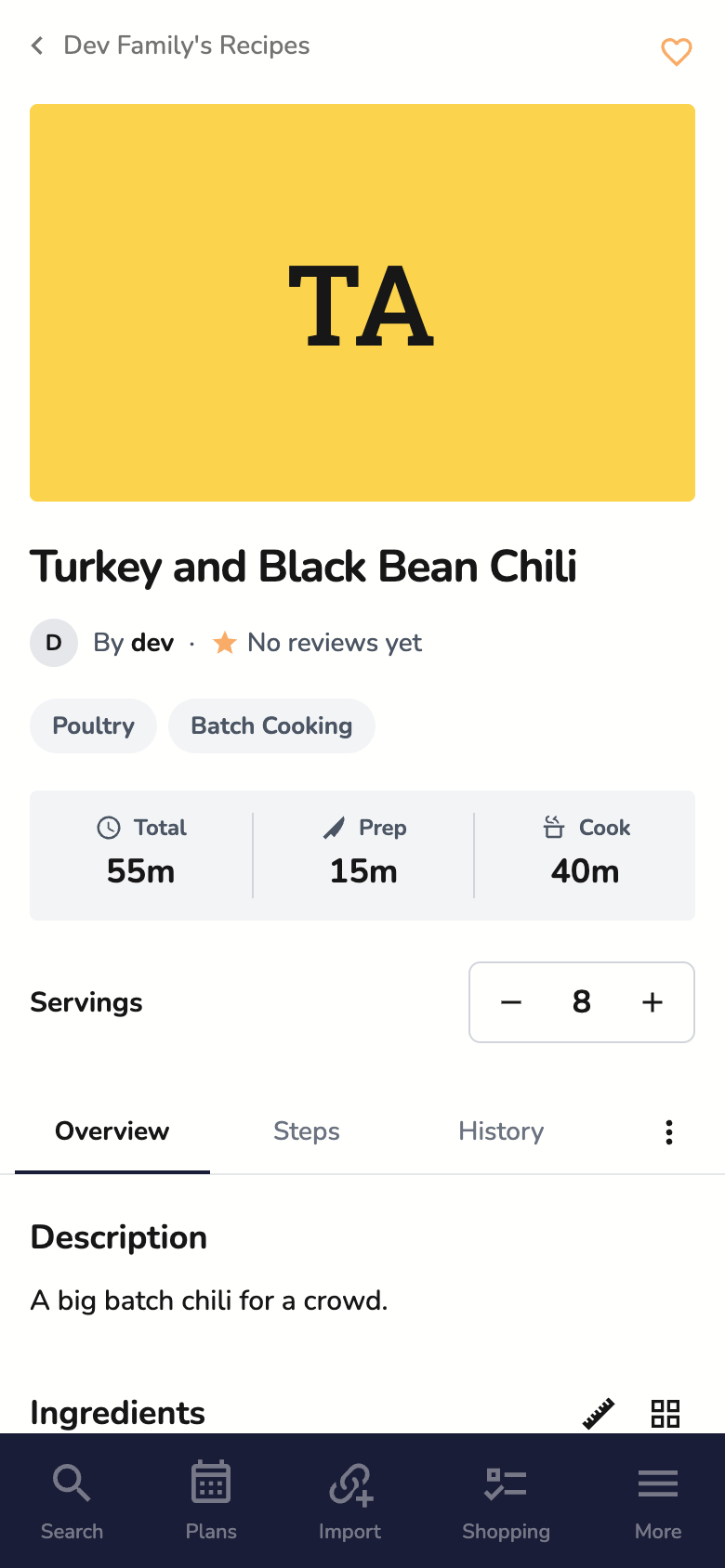
Below each recipe, More Like This suggests similar recipes from your cookbooks. On phones, cookbooks show as compact rows, and selecting several recipes in search to tag or move them is easier to do with a thumb. If you find a public recipe or profile that shouldn’t be there, you can now report it from its page.
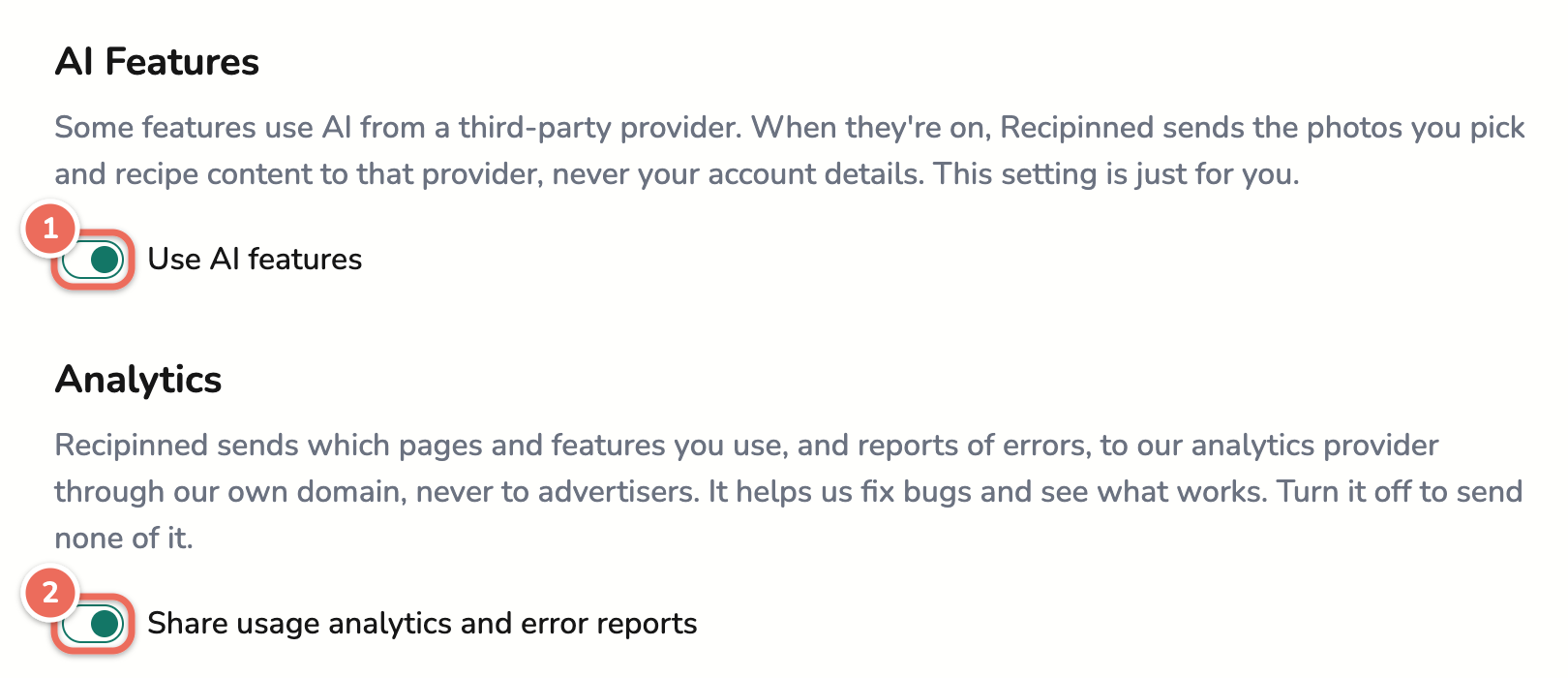
AI and privacy settings
The new Privacy page in settings puts these choices in one place:
- Use AI features. This one is just for you, not your whole account. When it’s off, photo imports ask before they start, and social imports point you here.
- Share usage analytics and error reports. Turn it off and Recipinned sends none of it.
You can now delete your account from Settings > Account. Members remove just themselves; the account owner can close the whole account. When we make a real change to our terms or privacy policy, the app asks you to accept the new version once. If you use API tokens, each token can now have its own permissions, so a script that only reads recipes doesn’t need access to your shopping lists.
Dietitians and facilities got updates too, including whole-day nutrition analysis and a site meal plan report. See what’s new for dietitians and facilities.
Which of these will you try first? And what were you hoping to see that isn’t here? Tell me with Feedback? Let us know in your account menu.
Hayden